Looking for a free VPN for Xiaomi, Redmi, or POCO? On most global versions of these smartphones, you can install a VPN app directly from Google Play. If the Play Store isn't available, you can also download an APK file from the developer's official website.
VPNHouse offers a free VPN for Android that you can use on compatible Xiaomi, Redmi, and POCO smartphones. The app lets you connect to a VPN with a single tap and encrypts internet traffic transmitted through the VPN tunnel.
In this guide, we'll show you how to download a VPN for Xiaomi, install it through Google Play or an APK file, configure it on HyperOS and MIUI, and troubleshoot common connection issues.
What Is the Best Free VPN for Xiaomi, Redmi, and POCO?
When choosing a VPN for Xiaomi, it's worth looking beyond the price. Ease of installation, security, connection stability, and compatibility with your device are just as important.
A good Android VPN should:
- Offer a free option without requiring a paid subscription.
- Support Android and be compatible with your phone's operating system.
- Encrypt traffic transmitted through the VPN connection.
- Have a clear and transparent privacy policy.
- Provide convenient installation and update options.
- Make it easy to connect and disconnect.
VPNHouse: A Free VPN for Xiaomi
VPNHouse is a VPN service with an Android app available in both free and Premium versions.
The free version is supported by advertising, allowing you to use the VPN without purchasing a subscription.
Why choose VPNHouse for your Xiaomi smartphone?
- Free access. Get started without paying for a subscription.
- One-tap connection. Connect to the VPN with a single tap.
- Two installation options. Download the app through Google Play or install it using the official APK file.
- Encrypted connection. VPNHouse encrypts traffic passing through the VPN tunnel.
- Premium features. Upgrade to a paid plan for additional functionality.
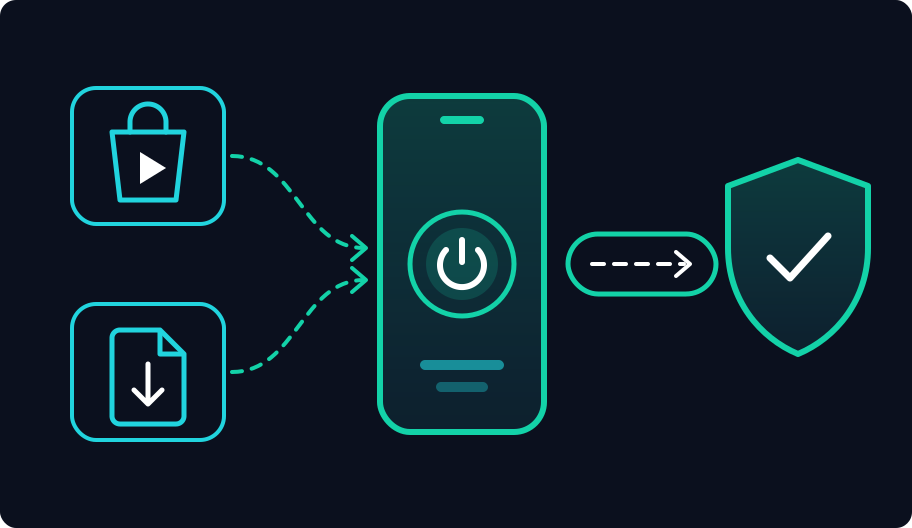
VPNHouse is designed for Android, but compatibility with a particular Xiaomi, Redmi, or POCO model depends on the operating system version and the app's technical requirements.
How to Install a VPN on Xiaomi Using Google Play
Most global versions of Xiaomi, Redmi, and POCO smartphones come with Google Play preinstalled.
If the Play Store is available on your device, this is usually the easiest way to download a VPN.
Step 1: Open Google Play
Launch the Google Play Store on your smartphone and search for VPNHouse. Find the VPNHouse app and make sure it's published by the official developer.
Step 2: Install the App
Tap Install and wait for the download to finish. Once installation is complete, open VPNHouse.
Step 3: Connect to the VPN
Tap the connection button. When you connect for the first time, Android may ask you to approve a VPN connection request. Confirm the request.
After a successful connection, a VPN icon will usually appear in your phone's status bar. You can now open your browser and check that your internet connection is working.
How to Download a VPN for Xiaomi Without Google Play Using an APK
If Google Play is missing, unavailable, or not working, you can install VPNHouse through an APK file on compatible Xiaomi devices.
An APK is the standard installation package format for Android applications.
Step 1: Download the Official APK
Open a browser on your smartphone and visit the official VPNHouse Android download page. Tap Download APK and wait for the installation file to download.
Avoid modified APK files from unknown websites or unverified sources.
Step 2: Allow APK Installation
Android or HyperOS may ask you to allow app installation from the selected source. If prompted, grant installation permission to the browser or file manager you're using to open the APK.
The exact location of this setting depends on your Xiaomi model and the version of HyperOS or MIUI. You can disable the permission again after installation.
Step 3: Install VPNHouse
Open the downloaded APK file. If you can't find it in your browser, open your phone's file manager and go to the Downloads folder. Tap Install and wait for the process to finish.
If your phone reports that the app is incompatible, check your Android version and VPNHouse's technical requirements. Don't disable important security protections to bypass warnings about potentially harmful files.
Step 4: Launch the VPN
Open VPNHouse and tap the connection button. Approve the Android VPN connection request if it appears, then check that your internet connection works while the VPN is active.
How to Configure a VPN on Xiaomi with HyperOS and MIUI
Xiaomi, Redmi, and POCO smartphones run different versions of HyperOS and MIUI. These operating systems may restrict background app activity to save battery power.
In some cases, this can cause a VPN to disconnect when the screen is locked or after the phone has been idle for a while. If your VPN connection is stable, you don't need to change any settings.
Allow VPNHouse to Run in the Background
Open your phone's settings and find VPNHouse in the list of installed apps. Check the background activity and battery management settings. If the system is restricting the app, try allowing background activity.
Some versions of HyperOS and MIUI also provide an autostart option. The exact menu names and available settings may vary depending on your device.
Check Battery Optimization
If your VPN disconnects when you lock the screen, check the battery settings for VPNHouse. If necessary, try temporarily removing battery-saving restrictions for the app. Keep in mind that unrestricted background activity may increase battery consumption.
Test the VPN After Locking Your Screen
Connect to VPNHouse and lock your smartphone for a few minutes. Unlock your phone and check whether the VPN connection is still active. If it disconnected, review your background activity and battery optimization settings.
Why Isn't My Free VPN Working on Xiaomi?
Even after successful installation, your VPN may occasionally fail to connect or become unstable. Here are some common problems and ways to fix them.
VPN Connects, but the Internet Doesn't Work
Try the following steps:
- Disconnect the VPN and check whether your internet works without it.
- Switch between Wi-Fi and mobile data.
- Restart VPNHouse.
- Check for available app updates.
- Make sure another VPN isn't running at the same time.
If the problem only occurs on a particular network, it may be related to restrictions imposed by your mobile carrier or internet service provider.
VPN Disconnects When the Screen Is Locked
Check the battery optimization settings in HyperOS or MIUI. Your phone may be restricting VPNHouse's background activity.
VPNHouse Won't Install
Make sure that:
- Your phone has enough available storage.
- The APK was fully downloaded from the official website.
- Installation from the selected source is permitted.
- Your operating system version is compatible with the app.
If the APK file is corrupted, delete it and download a fresh copy.
VPN Connection Is Slow
VPN speed depends on several factors, including your internet connection quality, server load, network restrictions, and other conditions.
Try switching from mobile data to Wi-Fi or vice versa. You can also test your internet speed without the VPN to help identify whether the slowdown is related to your underlying connection.
Does a Free VPN Work on Redmi and POCO?
Redmi and POCO are smartphone product lines associated with the Xiaomi ecosystem. Many models run Android with HyperOS or MIUI.
As a result, the general steps for installing VPNHouse on Android also apply to compatible Redmi and POCO devices.
Free VPN for Redmi
On compatible Redmi smartphones, you can install VPNHouse through Google Play or the official APK file. If your VPN disconnects in the background, check your battery optimization settings and app permissions.
Free VPN for POCO
Installation works similarly on compatible POCO smartphones. Open Google Play or download the APK from the official VPNHouse website. After installation, connect to the VPN and check your internet connection.
VPN for Xiaomi with HyperOS
HyperOS supports standard Android VPN functionality on compatible devices. However, background activity, app permissions, and battery management settings may be organized differently from MIUI. If your VPN connection is unstable, check these settings on your phone.
Is It Safe to Use a Free VPN on Xiaomi?
When choosing a free VPN, it's important to consider more than just the price. You should also understand how the provider handles your data.
Before installing a VPN, we recommend that you:
- Read the VPN provider's privacy policy.
- Download the app only from official sources.
- Review the permissions requested by the app.
- Avoid cracked or modified VPN applications.
- Keep the app updated.