Looking for a free VPN for Huawei, but your smartphone doesn't have Google Play? You're not alone. Many newer Huawei devices come without Google Mobile Services, which means downloading apps through the Google Play Store isn't an option.
The good news is that you can still install a VPN on many compatible Huawei smartphones running Android or EMUI — without Google Play. All you need is an APK installation file from a trusted source.
For example, VPNHouse offers a free VPN for Android that you can download directly from its official website as an APK file. You don't need Google Play or a Google account to download it.
In this guide, we'll explain how to download a free VPN for Huawei, install it using an APK file, configure your connection, and troubleshoot common issues.
What Is the Best Free VPN for Huawei?
When choosing a VPN for Huawei, speed and security aren't the only things that matter. You also need to consider how the app can be installed.
Some VPN providers distribute their Android apps exclusively through Google Play. That's a problem for Huawei users whose devices don't include Google services.
When looking for a free VPN for Huawei, choose a provider that:
- Offers an official Android APK download.
- Doesn't require Google Play to download the installation file.
- Provides a free version without a mandatory subscription.
- Encrypts your VPN connection.
- Has a clear and transparent privacy policy.
- Supports the Android version running on your device.
VPNHouse: A Free VPN for Huawei Available as an APK
VPNHouse is a VPN service offering an Android app with both free and Premium options.
The free version is supported by advertising, allowing users to access VPN services without purchasing a subscription.
Why consider VPNHouse for your Huawei smartphone?
- Free access. Get started without paying for a subscription.
- Official APK download. Download the Android installation file directly from the VPNHouse website, without Google Play.
- One-tap connection. Connect to the VPN with a single tap.
- Encrypted connection. VPNHouse encrypts traffic transmitted through the VPN tunnel.
- Premium features. Upgrade for additional functionality and an ad-free experience.
Keep in mind that compatibility depends on your specific Huawei model and operating system. Being able to install an Android APK doesn't necessarily mean every app feature will work without Google Mobile Services.
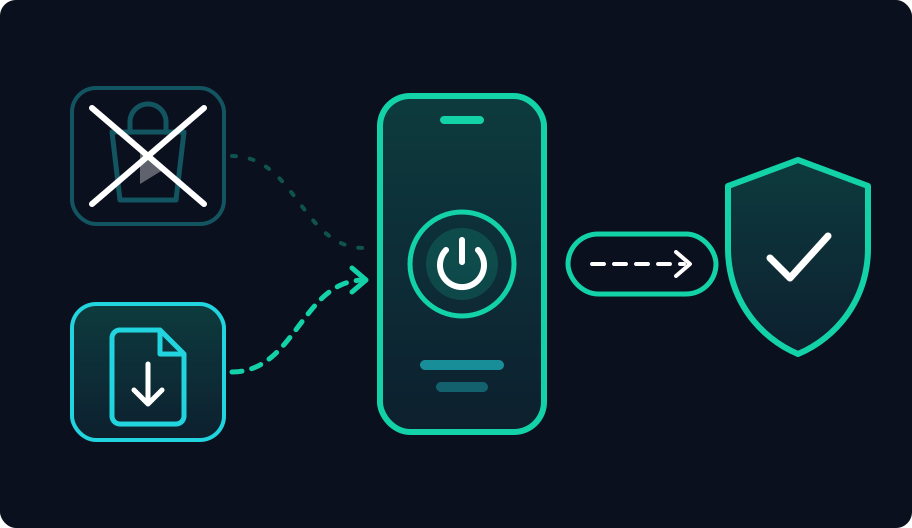
How to Install a VPN on Huawei Without Google Play: Step-by-Step Guide
If your Huawei phone doesn't have Google Play, you can install a compatible VPN app directly from an APK file.
This method works on many Huawei devices running Android or EMUI that support Android app installation.
Step 1: Download the VPN APK from the Official Website
Open your preferred web browser on your Huawei smartphone and visit the official VPNHouse Android download page. Find the Download APK button, tap it, and wait for the download to finish.
The APK file will usually be saved in your phone's Downloads folder.
Important: Only download APK files from official developer websites or other trusted sources. Avoid modified APKs from unknown websites, messaging groups, or third-party file-sharing services.
Step 2: Allow APK Installation on Your Huawei Phone
When installing an app from a browser or file manager, Huawei may ask you to allow installations from that source.
On some EMUI versions, you can find this option under: Settings → Security → More Settings → Install Apps from External Sources.
Select the browser or file manager you're using and allow it to install apps.
The exact menu names and locations may vary depending on your Huawei model and EMUI version. Once installation is complete, you can disable this permission again.
Step 3: Install VPNHouse on Huawei
Open the APK file you downloaded. If you can't find it in your browser:
- Open the Files app.
- Go to the Downloads folder.
- Find the VPNHouse APK file.
- Tap Install.
- Wait for the installation to finish.
If your device reports that the app isn't compatible, check your operating system version and the app's requirements. Don't disable important security protections to bypass warnings about potentially harmful files.
Step 4: Connect to the Free VPN on Huawei
Once installation is complete, open VPNHouse and tap the connection button. When you connect for the first time, Android will ask for permission to establish a VPN connection. Approve the request.
After a successful connection, a VPN icon will usually appear in your phone's status bar. You can now open your browser and check that your internet connection is working.
How to Configure a VPN on Huawei with EMUI
Sometimes, a VPN connection on Huawei may become unstable because of the phone's background activity restrictions. For example, the VPN might disconnect when you lock your screen or enable battery-saving features.
If your VPN works normally, there's no need to change these settings. But if you experience frequent disconnections, the following adjustments may help.
Allow the VPN to Run in the Background
On some EMUI versions, open: Settings → Battery → App Launch. Find VPNHouse in the list of installed apps.
If manual management is available, check whether automatic launch and background activity are allowed. Menu names may differ depending on your Huawei device.
Check Battery Optimization Settings
Open your phone's battery settings and check whether the system is restricting VPNHouse's background activity. If necessary, try temporarily removing battery optimization restrictions for the app. Keep in mind that allowing unrestricted background activity may increase battery consumption.
For more detailed instructions, read our guide: How to Prevent VPN from Turning Off in Sleep Mode on Huawei Devices.
Why Isn't My Free VPN Working on Huawei?
Even after successful installation, your VPN may occasionally fail to connect or become unstable. Here are some common issues and ways to troubleshoot them.
VPN Connects, but the Internet Doesn't Work
Try these steps:
- Disconnect the VPN and check whether your internet works without it.
- Switch between Wi-Fi and mobile data.
- Restart VPNHouse.
- Check for available app updates.
- Make sure another VPN isn't running at the same time.
If the problem only occurs on a particular network, it may be related to restrictions imposed by your mobile carrier or internet service provider.
VPN Disconnects When the Screen Is Locked
Check your EMUI background activity and battery optimization settings. Huawei's power management features may restrict apps running in the background after the screen is locked.
VPNHouse APK Won't Install
Make sure that:
- The APK was fully downloaded from the official website.
- Your device has enough available storage.
- Installation from the selected source is permitted.
- Your operating system version is compatible with the app.
If the file appears to be corrupted, delete it and download a fresh copy from the official VPNHouse website.
The App Installs but Won't Open
This may be caused by an incompatible operating system version or by app features that depend on system components unavailable on your device. Check VPNHouse's technical requirements and compatibility with your specific Huawei model.
Can You Use a Free VPN on Huawei Without Google Services?
You don't need Google Play Services to download the VPNHouse APK from the official website.
However, there's an important difference between installing an app and using it successfully.
- Installing the app: If your Huawei device supports Android APK files, you can download and open the installation package without Google Play.
- Running the app: Some Android applications rely on Google services for certain features. As a result, successfully installing an APK doesn't guarantee that every VPNHouse feature will work on a device without Google Mobile Services (GMS).
If the app installs but doesn't launch or function correctly, check its technical requirements.
Does VPNHouse Work on Huawei with HarmonyOS?
Compatibility depends on the operating system version.
- Huawei devices running Android or EMUI: Many support Android APK installation, although app compatibility depends on the specific device and software version.
- Huawei devices running earlier versions of HarmonyOS: Some versions retain Android app compatibility, but this should be verified for your particular device.
- Huawei devices running HarmonyOS NEXT (HarmonyOS 5 and later): These systems do not natively support standard Android APK files. The regular VPNHouse Android APK installation method therefore isn't suitable for these devices.
Before downloading, check your operating system version under Settings → About Phone.